On the mobile app
1. Go to "More" in the bottom right-hand corner of the app and then click "History Management"
2. Select a tracker from the dropdown
3. Press Download
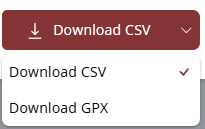
4. Choose your format between CSV and GPX.
5. Your iOS or Android share menu will show up within a few seconds to share your CSV or GPX file.
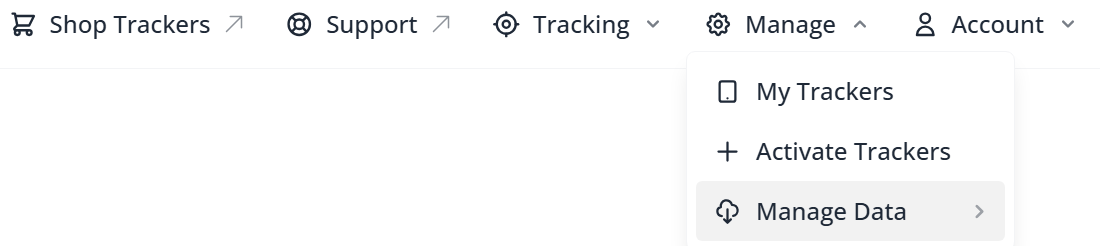
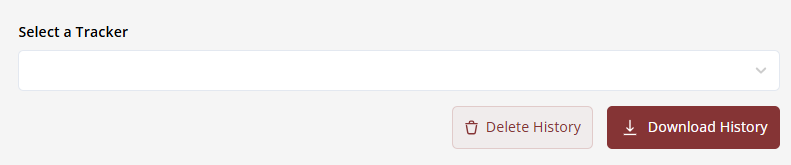
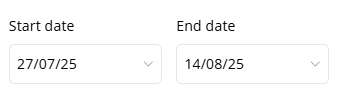
5. You can toggle the download button using the downward arrow on the right side of the button between CSV and GPX
What are the columns when exporting history in CSV?

Timestamp
Provides the date and time of each location update during the journey in UTC timezone (UTC +0).
ID
Internal system data used by SafeTag (Not applicable)
Location
Provides the full coordinates of each location update during the journey.
Lat
The latitude coordinate of the location update
Lng
The longitude coordinate of the location update
Speed_Kmh
The speed the tracker was travelling in kilometres per hour.
Speed_Mph
The speed the tracker was travelling in miles per hour.
Was this article helpful?
That’s Great!
Thank you for your feedback
Sorry! We couldn't be helpful
Thank you for your feedback
Feedback sent
We appreciate your effort and will try to fix the article