Setting it up on the Mobile App
1. Open the app & sign in if you see the login screen
2. Press the "More"/"Settings" button in the bottom right-hand corner of the screen.
3. Press "Tracker Settings"
4. Select the tracker you want to update
5. Input your desired speed within the Speed Limit section.
6. Scroll to the bottom of the page and enable the speed alerts
7. Press "Save changes"
Setting it up on the Web App
1. Go to app.safetagtracking.com/login on a laptop or desktop and log in if necessary
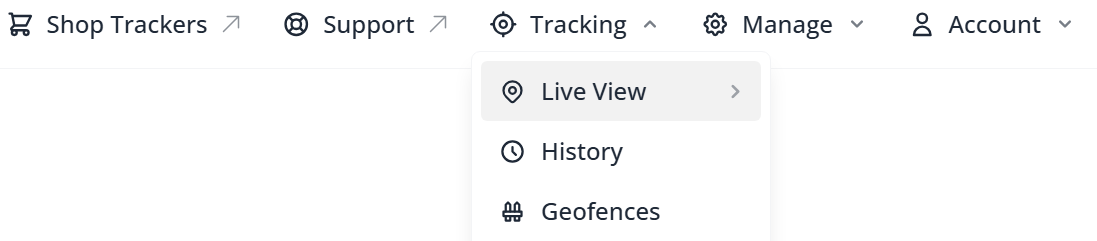
2. Go to the Live Tracking page by hovering on "Tracking" and clicking "Live View"
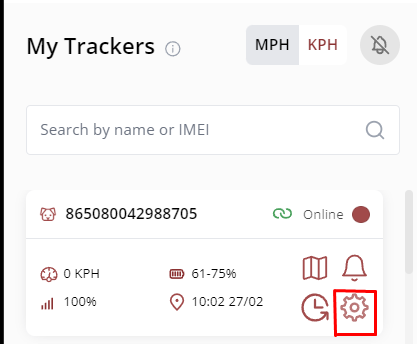
3. Click the settings cog on your desired tracker in the sidebar on the left of the screen
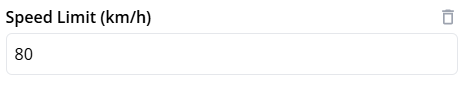
4. Input your desired speed in the speed limit section
5. Scroll down the page to the alerts section and toggle "ON" the speed alert.

6. Press "Save Changes"
Was this article helpful?
That’s Great!
Thank you for your feedback
Sorry! We couldn't be helpful
Thank you for your feedback
Feedback sent
We appreciate your effort and will try to fix the article